> ## Documentation Index
> Fetch the complete documentation index at: https://docs.roostrr.com/llms.txt
> Use this file to discover all available pages before exploring further.
# Actions & Webhooks
> Set up automated tasks and notifications to trigger after your calls are completed.
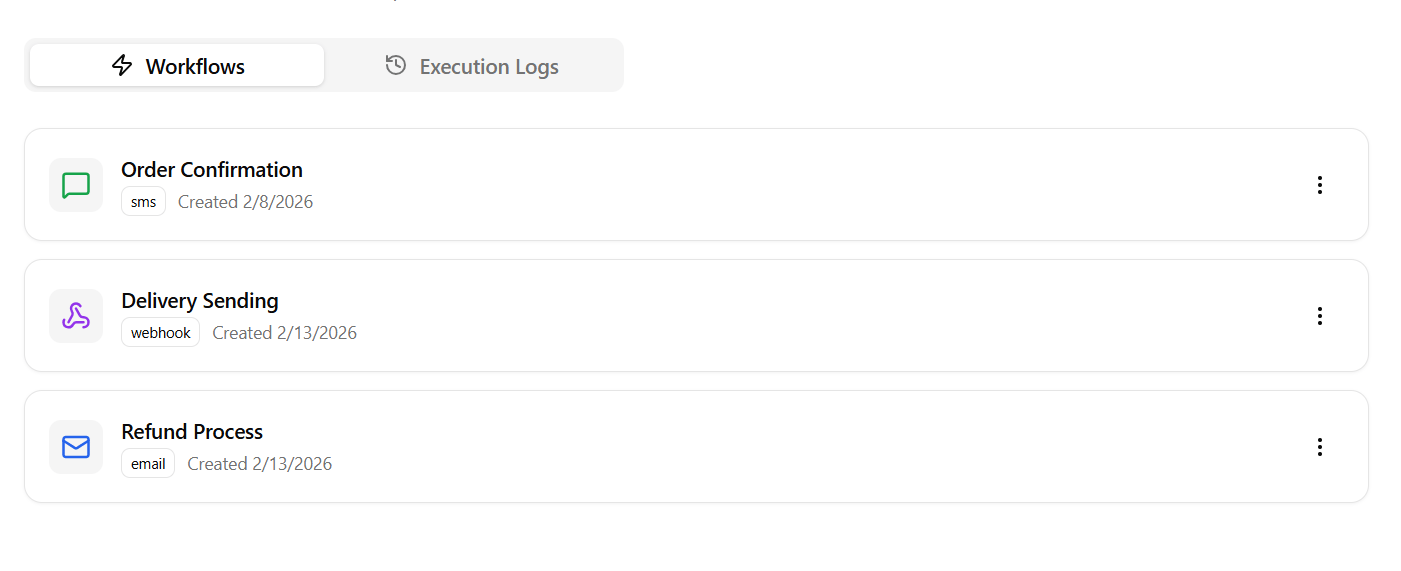
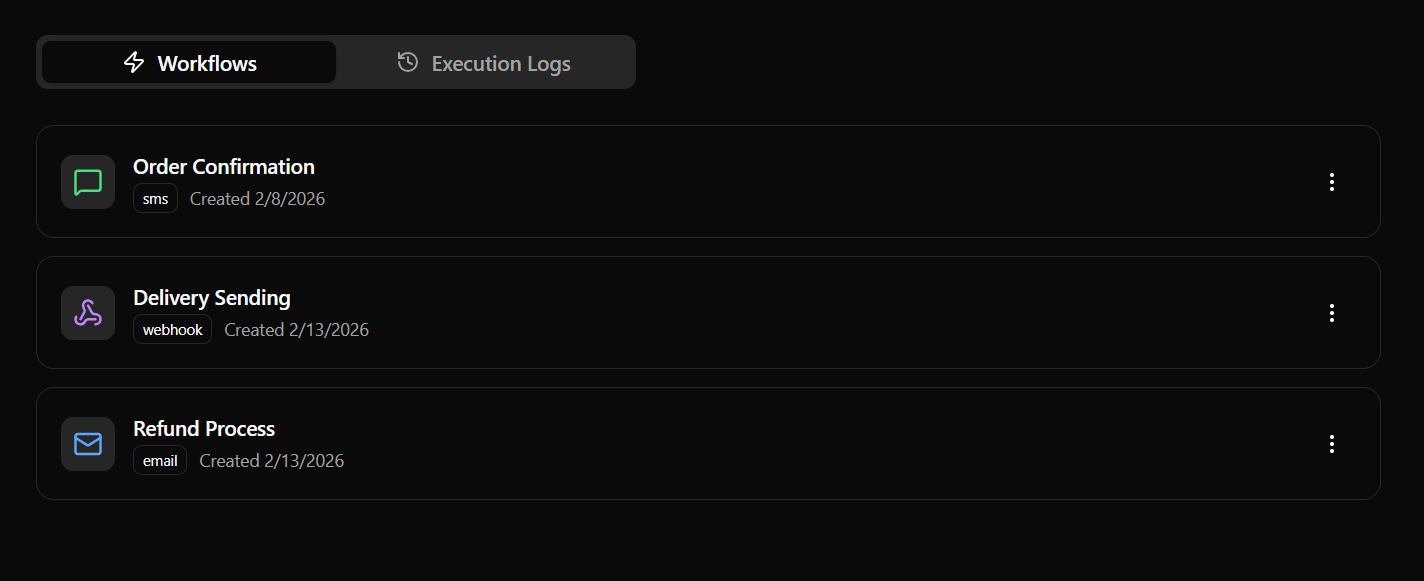
Actions allow you to build workflows that trigger automatically after a call finishes. For example, you can send Webhook data payloads to your internal systems, email call transcripts to your team, or send follow-up WhatsApp notifications to customer numbers based on call outcomes.
 ## Building a Post-Call Action
Navigate to the **Actions** tab in your dashboard, click **Create Action**, and fill in the two-step setup form:
### Step 1: Trigger Event
Define *when* this automation should execute:
* **Availability Context:** Choose whether this action runs for **All Calls**, **Inbound Calls Only**, or **Outbound Calls Only**.
* **For Voice Agent:** Select a specific Voice Agent or choose **All Voice Agents** to apply this trigger globally.
* **Outcome Tag:** Specify a target outcome tag (e.g., `meeting_booked`, `support_resolved`). The trigger will only fire if the call completed with this success tag. Leave empty to trigger on all calls regardless of outcome.
### Step 2: Automation Target
Specify *what* Roostrr should do when the trigger fires:
#### Option A: Send a Webhook
Send a JSON payload containing the call metadata, duration, cost, and transcript to your server.
* **Webhook URL:** The destination URL on your server.
* **Method:** HTTP `POST` or `GET`.
#### Option B: Send an Email
Email call summaries and logs to your department addresses.
* **To Email(s):** Comma-separated list of recipient addresses (e.g., `sales@yourdomain.com`).
* **Subject Line:** Custom subject text (e.g., *"New Lead Alert from Voice Agent"*).
#### Option C: Send a WhatsApp Message
Deliver instant notifications to a specific number.
* **WhatsApp Number:** Destination phone number (e.g., `+1...` or `+234...`).
***
## Execution Logs & Debugging
In the **Execution Logs** tab, you can track and debug every automated run:
* **Status Indicators:** View execution status badges (Success, Failed, Pending).
* **Duration:** Track the time (in ms) your server took to respond to the webhook.
* **Debug details:** Click any log row to open the inspector, displaying:
* Destination URL target.
* Backend error messages.
* JSON Request/Response debug logs.
## Building a Post-Call Action
Navigate to the **Actions** tab in your dashboard, click **Create Action**, and fill in the two-step setup form:
### Step 1: Trigger Event
Define *when* this automation should execute:
* **Availability Context:** Choose whether this action runs for **All Calls**, **Inbound Calls Only**, or **Outbound Calls Only**.
* **For Voice Agent:** Select a specific Voice Agent or choose **All Voice Agents** to apply this trigger globally.
* **Outcome Tag:** Specify a target outcome tag (e.g., `meeting_booked`, `support_resolved`). The trigger will only fire if the call completed with this success tag. Leave empty to trigger on all calls regardless of outcome.
### Step 2: Automation Target
Specify *what* Roostrr should do when the trigger fires:
#### Option A: Send a Webhook
Send a JSON payload containing the call metadata, duration, cost, and transcript to your server.
* **Webhook URL:** The destination URL on your server.
* **Method:** HTTP `POST` or `GET`.
#### Option B: Send an Email
Email call summaries and logs to your department addresses.
* **To Email(s):** Comma-separated list of recipient addresses (e.g., `sales@yourdomain.com`).
* **Subject Line:** Custom subject text (e.g., *"New Lead Alert from Voice Agent"*).
#### Option C: Send a WhatsApp Message
Deliver instant notifications to a specific number.
* **WhatsApp Number:** Destination phone number (e.g., `+1...` or `+234...`).
***
## Execution Logs & Debugging
In the **Execution Logs** tab, you can track and debug every automated run:
* **Status Indicators:** View execution status badges (Success, Failed, Pending).
* **Duration:** Track the time (in ms) your server took to respond to the webhook.
* **Debug details:** Click any log row to open the inspector, displaying:
* Destination URL target.
* Backend error messages.
* JSON Request/Response debug logs.