> ## Documentation Index
> Fetch the complete documentation index at: https://docs.roostrr.com/llms.txt
> Use this file to discover all available pages before exploring further.
# Outbound & Campaigns
> Launch automated voice dialing campaigns to call lists of contacts.
Outbound Campaigns allow you to upload or enter a list of contacts and deploy your voice agents or specialized workers to dial them automatically.
 ## Creating a Campaign
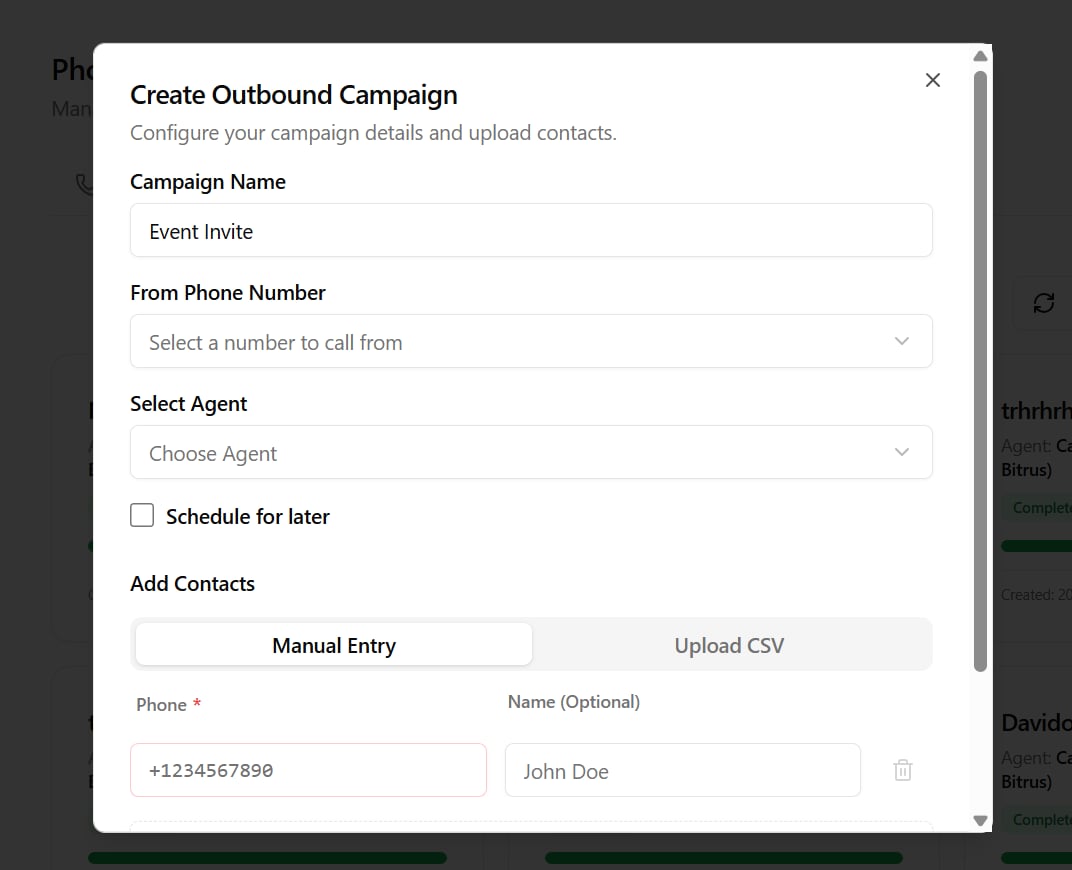
1. Navigate to the **Phone** tab in your dashboard, select **Campaigns**, and click **New Campaign**.
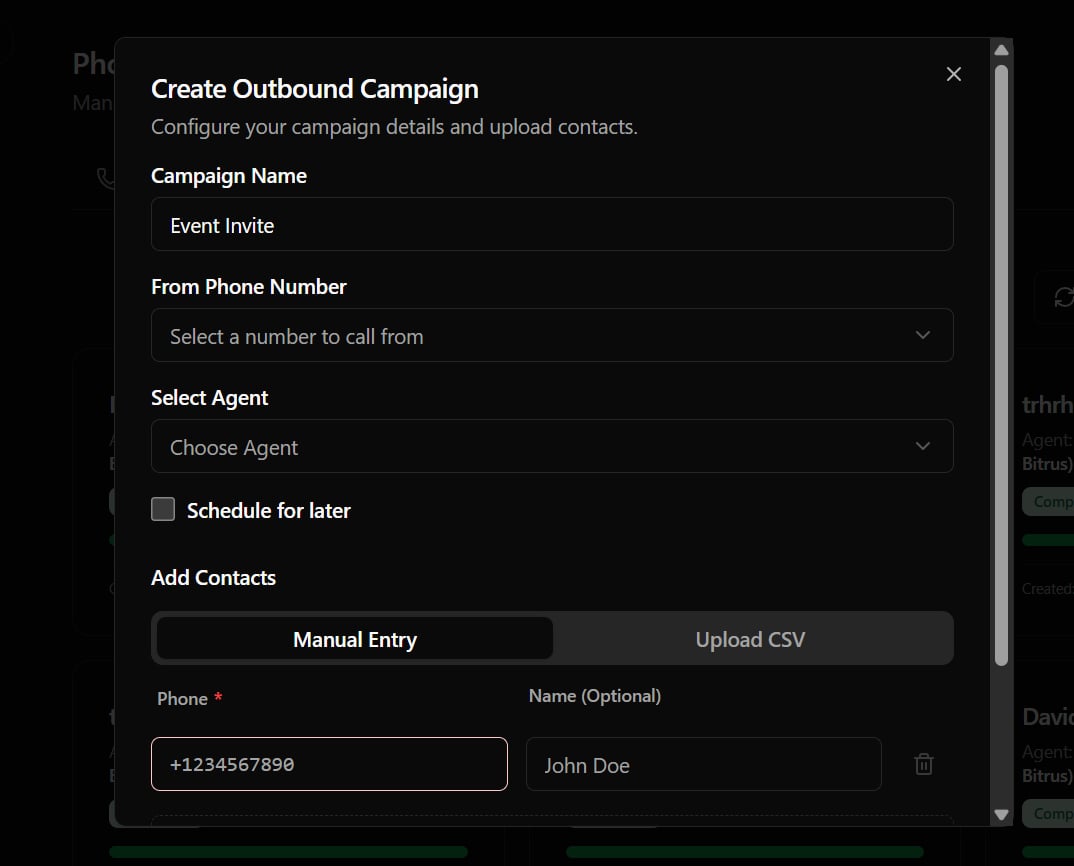
2. Configure the campaign fields:
* **Campaign Name:** A descriptive label.
* **For Voice Agent:** Select the custom agent or restaurant worker who will speak with the contacts.
* **Caller ID Number:** Select the outbound phone number from your active rented pool.
* **Schedule Campaign:** Toggle this to define a future date/time to start placing calls.
### Contact Input Methods
You can supply your contact list in one of two ways:
#### 1. Manual Entry (Quick Test)
Add rows directly in the UI.
* **Details:** Type the contact's name and phone number (e.g. `+1...` or `+234...`).
* **Limit:** Up to `5` manual contacts are allowed per campaign.
#### 2. CSV File Upload (Bulk Dialing)
Upload a spreadsheet (.csv) containing your contact database (up to 5MB).
* **CSV Format:** Ensure your columns include `phone` (with country code) and `name` (used by the agent for greetings). You can add custom columns (e.g. `order_id`) to inject dynamically into your agent prompts:
```csv theme={null}
phone,name,order_id
+15550199,John Doe,59991
+23480312,Jane Smith,59992
```
***
## Managing Active Campaigns
Once a campaign is started, you can manage it in real time from the dashboard:
* **Pause / Resume:** Temporarily stop dialing queue items or resume them.
* **Retry Failed Contacts:** Click the **Retry** icon to launch a follow-up sub-campaign containing only contacts that were unreachable, busy, or failed.
* **Progress & Metrics:** Track real-time completion percentages, successful calls, and failed dialing attempts.
* **View Logs:** Inspect details for individual contacts, including call durations, status badges, and logs.
## Concurrency Limits
The speed of outbound dialing is determined by your organization's concurrency limits:
* Outbound dialing lines default to `1` active call at a time.
* If you need to dial multiple contacts simultaneously, navigate to the **Settings** > **Billing** dashboard to add concurrent call slots to your subscription.
## Creating a Campaign
1. Navigate to the **Phone** tab in your dashboard, select **Campaigns**, and click **New Campaign**.
2. Configure the campaign fields:
* **Campaign Name:** A descriptive label.
* **For Voice Agent:** Select the custom agent or restaurant worker who will speak with the contacts.
* **Caller ID Number:** Select the outbound phone number from your active rented pool.
* **Schedule Campaign:** Toggle this to define a future date/time to start placing calls.
### Contact Input Methods
You can supply your contact list in one of two ways:
#### 1. Manual Entry (Quick Test)
Add rows directly in the UI.
* **Details:** Type the contact's name and phone number (e.g. `+1...` or `+234...`).
* **Limit:** Up to `5` manual contacts are allowed per campaign.
#### 2. CSV File Upload (Bulk Dialing)
Upload a spreadsheet (.csv) containing your contact database (up to 5MB).
* **CSV Format:** Ensure your columns include `phone` (with country code) and `name` (used by the agent for greetings). You can add custom columns (e.g. `order_id`) to inject dynamically into your agent prompts:
```csv theme={null}
phone,name,order_id
+15550199,John Doe,59991
+23480312,Jane Smith,59992
```
***
## Managing Active Campaigns
Once a campaign is started, you can manage it in real time from the dashboard:
* **Pause / Resume:** Temporarily stop dialing queue items or resume them.
* **Retry Failed Contacts:** Click the **Retry** icon to launch a follow-up sub-campaign containing only contacts that were unreachable, busy, or failed.
* **Progress & Metrics:** Track real-time completion percentages, successful calls, and failed dialing attempts.
* **View Logs:** Inspect details for individual contacts, including call durations, status badges, and logs.
## Concurrency Limits
The speed of outbound dialing is determined by your organization's concurrency limits:
* Outbound dialing lines default to `1` active call at a time.
* If you need to dial multiple contacts simultaneously, navigate to the **Settings** > **Billing** dashboard to add concurrent call slots to your subscription.