

Key Capabilities
- Conversational Ordering: Guides customers through menus, records item choices, captures order quantities, and handles modifications (e.g., “no onions” or “extra cheese”).
- Menu Verification: Checks item availability and pricing live on the call.
- Order Scheduling: Supports future pickup and delivery scheduling. Scheduled orders are queued securely in our database check loop.
- Automated Confirmations: Triggers automated order confirmations and summaries to both the restaurant owner and the customer via WhatsApp.
Configuration & Deployment
1. Hire the Worker
- Navigate to the Workers page in the sidebar.
- Click Hire a Worker.
- Under Available Workers, choose Restaurant Worker and click Hire.
- Give your worker a name (e.g., “Bistro Host”).
2. Menu and Knowledge Upload
In the worker settings, upload your menu files (PDF or TXT) and business rules. The worker’s local knowledge base will ingest the menu, prices, and dining options.3. Agent Commands (Missions)
You can define specific Commands or Missions to customize how the worker operates:- Example: “Always upsell our special garlic knots when a customer orders a pizza.”
- Example: “Inform customers that we are currently running a buy-one-get-one-free promotion on all sodas.”
Post-Call Triggers
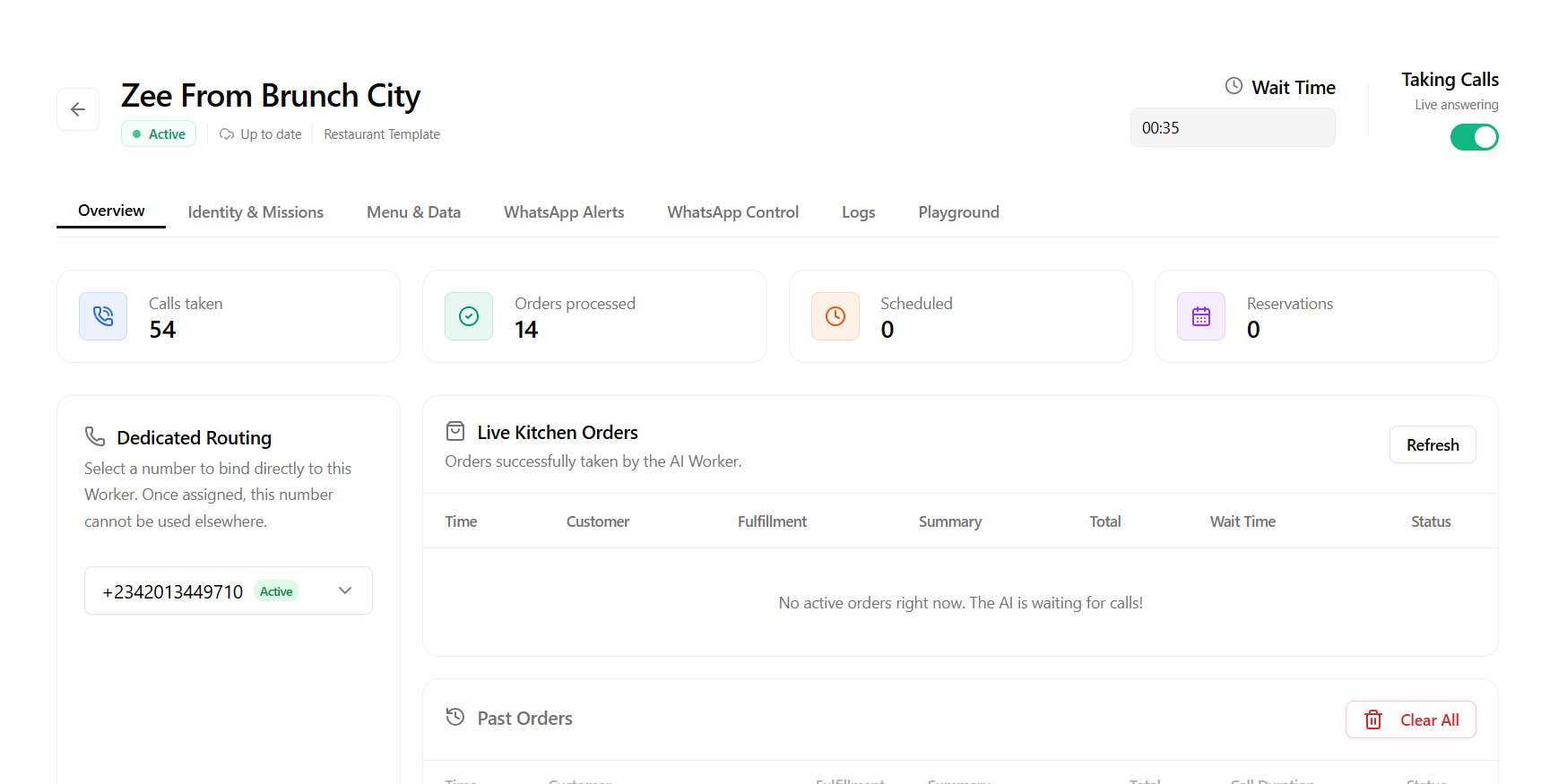
Upon successful completion of an order call:- The call ends, and the worker processes the final cart summary.
- The order is stored securely in your dashboard order log.
- If scheduled for a future time, it goes into our secure order queue scheduler.
- An automated message is sent to the customer containing their receipt, total price, and pickup/delivery window.
- A matching order ticket is dispatched to the restaurant owner.
Ensure you have configured your Messaging Settings in the integrations panel and have a verified number linked to send and receive these automated notifications.